2wL Virtual Keyboard -OSK- for Windows-=T-800 beta 0.3 100% Portable
A downloadable tool for Windows
2wL is an on-screen keyboard for Windows with focus on accessibility, gaming
compatibility, dual clipboard management, word prediction, and heavy theming.
This document describes every user-visible feature in detail. Sections are
ordered roughly by visibility: the things you see and click first come first.
NOTE: This is NOT a hack or anti-cheat tool. It was designed to complement the
desktop!
NOTE: The help dialog uses a fixed-width font, so this file is intentionally
plain ASCII. All special UI symbols are spelled out (e.g. "Settings gear").
HELP DIALOG - SELECT AND COPY
In Settings -> Senses or Above, click "Open Help File" to open this text in
the in-app Help window (bright green on black). You can:
Drag with the left mouse button to highlight a passage
Ctrl+C (or Ctrl+Insert) . Copy the selection to the Windows clipboard
Right-click -> Copy ..... Same
Selection highlight stays visible while the Help window has focus.
===============================================================================
QUICK REFERENCE
===============================================================================
MOUSE ON A KEY
Left-click ............ Send key (press + release)
Right-click ........... Lock single-shot or persistent (see LOCK MODES)
Double right-click .... Chord-lock the key (BLUE) - hold many at once
Hover ................. Highlight under cursor (if "Hover" enabled)
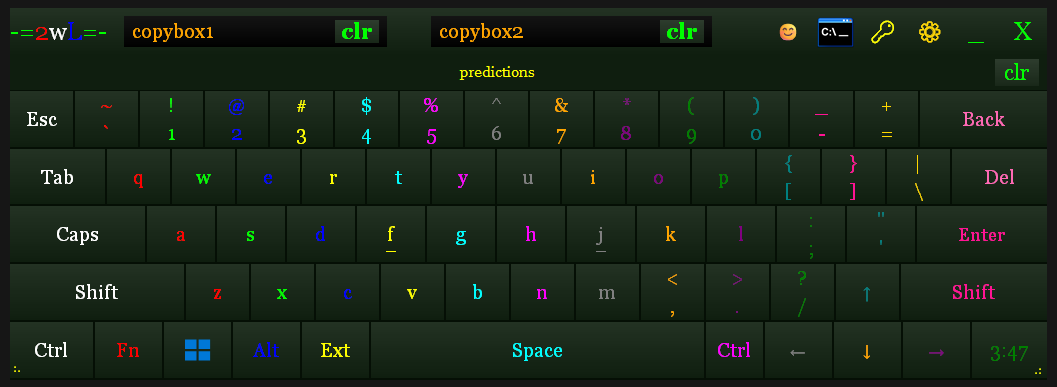
TITLE BAR (left -> right)
-=2wL=- ................ Drag area (L-click hold and move the window)
Copybox 1 / clr ....... Latest clipboard text (orange; click to paste)
Copybox 2 / clr ....... Previous clipboard text (orange; click to paste)
Recalled priors draw YELLOW — see COPYBOX section
Smiley ................ Emoji bar appears
C:\_ icon ............. Open Command Prompt (right-click for elevate menu)
Key symbol ... ........ Release ALL currently locked / chord-locked keys
Settings gear ......... Open the Settings dialog (right-click for cog menu)
Underscore ............ Minimize 2wL (hide)
X ..................... Close 2wL
CLOCK KEY (bottom-row "2wL" / time slot)
Short left-click ...... Clock mode: no-op (shows time)
Alt mode: toggle Right-Alt (like a modifier key)
Hold left-click ~3 s .. Cycle mode: Clock <-> Alt
See CLOCK / R-ALT SLOT below.
WORD PREDICTION (when enabled)
Tab / Enter ........... Word break: learns the word, clears buffer
Space ................. Word break + add space
EXT PANEL (Latin Extended-A)
Click "Ext" once ...... Show extra-character row (ext_level = 1)
Double right-click .... ext_level = 2 (more rows)
"Pg X-Y" indicator .... Click to advance page; arrow keys also paginate
POPUP DIALOGS (themed)
Esc ................... Cancel / No / dismiss
Enter or Space ........ Activate the highlighted button
Tab, Left, Right ...... Move focus between buttons
RESET ALL LOCKED KEYS
Click the lock-release control in the title bar at any time.
FILES (under %APPDATA%\2wL\)
2wL.ini ................ All settings + custom themes + custom fonts
learning.dat .......... Word prediction history (your typing patterns)
static_frequencies.txt Per-word usage tracking
trace.txt ............. Debug log (only when Trace is enabled)
2wLhelp.txt ............ This file (refreshed from the .exe each launch)
===============================================================================
KEYBOARD INTERACTION
===============================================================================
LAYOUT
Standard QWERTY plus a configurable Function row, an Ext row for accented
characters, and an optional Numpad column. The bottom row carries the
modifier keys (Ctrl, Win, Alt, Shift) and also the Fn / Ext toggles.
CLICK
Left-click on any key:
Sends a press-down + release for that virtual key to the foreground app.
For modifiers (Shift / Ctrl / Alt / Win) the key is held only for the
duration of the next character if you tap it once.
LOCK MODES (right-click)
Right-clicking a key engages a "lock" that keeps the key pressed across
subsequent input. There are three lock states; current code uses the
chord-lock path most actively.
Single-shot lock (RED) ........ Key stays pressed for the next character
only, then releases automatically.
Persistent lock (PURPLE) ..... Key stays pressed indefinitely until
right-clicked again.
Chord lock (BLUE) ....... Set by DOUBLE right-click. Multiple keys
can be chord-locked at once so you can
issue complex chords (e.g. Ctrl+Shift+T).
Click the lock-release control in the title bar to drop ALL locked and
chord-locked keys at once.
HOVER HIGHLIGHT
When "Hover" is on in Settings, keys light up while the mouse is over them.
Disable to reduce repaint load on slow systems.
===============================================================================
COPYBOX (DUAL CLIPBOARD DISPLAY)
===============================================================================
The title bar can show up to two clipboard slots. The leftmost slot
(Copybox 1) always reflects the latest clipboard text; when a new copy
happens, the previous text shifts into Copybox 2 (when enabled).
TEXT COLORS
Orange .................. Live / current text currently stored in the slot.
Yellow .................. A recalled PRIOR from that slot's history (you are
browsing older harvested pastes, not the live
value). When the cycle wraps back to the text that
was in the box when you started, it returns to
orange.
HOW TO SEE YELLOW (RECALL A PRIOR)
1. Make sure the slot has history (copy something, paste from the box,
or use "clr" — each of those harvests text into a 3-deep cache).
2. Double right-click the copybox text field (or its "clr" when empty).
3. The first recalled prior appears in YELLOW.
4. Further right-clicks cycle older yellow priors (up to 3), then wrap.
ON A COPYBOX TEXT FIELD
Left-click ............ Paste that text into the foreground window
(sets the OS clipboard, then sends Ctrl+V).
RIGHT-CLICK RECALL (empty or populated box)
Double right-click .... Show the previous harvested paste for that slot
(works whether the box is empty or already has
text). Recalled priors draw YELLOW.
Further right-clicks .. Cycle older harvested pastes (up to 3). After the
oldest, if the box had text when you started,
that original text comes back (orange); then the
cycle wraps to the newest harvest again.
Blank box ............. Lists priors only (1→2→3→1…). Never stays blank
unless that slot's cache is empty.
History source ........ Each slot keeps its own cache (same session):
new copies that displace the slot, Paste, and
"clr" all harvest text (newest first, max 3).
ON THE "clr" BUTTON
Left-click ............ Clear the box (remove its stored text).
If currently in HOLD mode, left-click on "hld"
releases HOLD without clearing.
Double right-click
(when NON-EMPTY) .... Enter HOLD mode (same double-tap idea as chord-
lock on keys). The label changes to "hld" and the
slot will NOT auto-clear after paste. Left-click
on "hld" releases HOLD.
Double right-click
(when EMPTY) ........ Same as RIGHT-CLICK RECALL above (starts cycling
harvested pastes in yellow).
While recall-cycling .. Further right-clicks on the box or its "clr"
continue cycling history (HOLD is not armed until
you leave recall).
Settings -> Insight -> "Enable Copybox" controls Copybox 1.
Settings -> Insight -> "Copybox 2" controls Copybox 2.
===============================================================================
WORD PREDICTION
===============================================================================
When enabled, 2wL predicts the rest of the word you're typing using a hybrid
of (a) a static frequency table seeded from a 10,000-word English corpus
("Google 10k") and (b) your personal typing history.
Hybrid weight ........... 70% personal history + 30% static dictionary.
Personal history ........ Stored in %APPDATA%\2wL\learning.dat. Updated
automatically every time you complete a word.
Static frequencies ...... Stored in %APPDATA%\2wL\static_frequencies.txt.
Built-in dictionary ..... Embedded in 2wL.exe (no internet required).
PREDICTION CONTEXT MENU (right-click a suggestion)
Promote ........... Boost this word's priority in future predictions.
Demote ............ Reduce this word's priority (pushes it lower).
Delete ............ Remove this word from learning data so it is no
longer suggested (it can be learned again later).
Cancel ............ Close the menu with no changes.
WORD-BREAK TRIGGERS
The current word is "committed" (added to your learning data) when you:
- Press Space (commits + adds a space)
- Press Tab (commits, no extra character)
- Press Enter (commits, no extra character)
- Press any punctuation that isn't part of a word
DICTIONARY / LIBRARY
Insight shows the active dictionary filename under Word Prediction.
"Clear Library" resets prediction back to the embedded default word list
(it does not open a file picker). Your personal learning.dat is separate.
===============================================================================
CLOCK / R-ALT SLOT
===============================================================================
The bottom-row key that shows the local time (labeled "2wL" in the layout
data) is a multi-mode slot:
Clock (default) ........ Displays 12-hour time. Short left-click does
nothing (display only).
Alt .................... Label shows "Alt". Short left-click toggles
Right-Alt (VK_RMENU) — same idea as tapping the
physical Right-Alt modifier (one-shot / lock
behavior matches other modifiers).
HOLD ~3 SECONDS (left mouse button down on the slot)
Cycles: Clock <-> Alt
Releasing after a successful hold does NOT also fire the short-click
action for the new mode.
===============================================================================
NUMPAD
===============================================================================
Toggle "Enable NumPad" on Settings -> Insight to show the right-side numeric
column. Optional subordinate checkbox "Enable outline box" draws a border
around the numpad block. It is NumLock-aware: turn NumLock off (or hold
Shift) and the keys re-label to their navigation alternatives:
7 / 8 / 9 -> Home / Up / PgUp
4 / 5 / 6 -> Left / 5 / Right
1 / 2 / 3 -> End / Down / PgDn
0 -> Insert
. -> Delete
===============================================================================
SPLIT KEYBOARD (WINDOWED SPLIT)
===============================================================================
In Settings -> Above, enable "Split Keyboard (2)" to split 2wL into two
independent windows that share the same keyboard state.
In split mode:
- Copybox 1 is on the left half; Copybox 2 (previous clipboard) is on the right half.
- Title-bar controls (emoji toggle / command console / settings gear / key release)
are per-window: click the control on the half you can see.
- Function row and Numpad are clickable on the half where they are drawn.
- The Ext (extra-character) panel lays out consistently across both halves.
===============================================================================
FUNCTION ROW (FN BUTTON)
===============================================================================
Click "Fn" in the bottom row to toggle a row of F1-F12 keys above the number
row. The function row supports the same press/right-click/chord-lock model
as any other key. When the function row is visible, Tab cycles keyboard
focus along it for keyboard-only navigation.
The "Function row" checkbox in Settings makes the row permanently visible
without needing the Fn toggle each launch.
===============================================================================
EXT (EXTENDED / ACCENTED CHARACTERS)
===============================================================================
The "Ext" key opens an extra row of Unicode characters from the Latin
Extended-A block (0x0100 - 0x017F): accented Latin letters used by many
European languages (a-with-macron, c-with-caron, etc.).
Single click on Ext ......... ext_level = 1 (single extra row, yellow label)
Double right-click on Ext ... ext_level = 2 (extended panel, white label)
Click again on Ext .......... Hide the panel
PAGING
The panel is paginated (each page shows a window into the 0x0100..0x017F
range). The "Pg X-Y" indicator on the left of the panel shows the current
page. Click the indicator (or press a paging arrow) to advance. Holding
the page key auto-repeats through the pages.
===============================================================================
TITLE-BAR CONTROLS (DETAIL)
===============================================================================
-=2wL=- (logo) ........ Left-click hold and drag to move the window.
Copybox 1 / clr ...... See COPYBOX section above (orange live / yellow prior).
Copybox 2 / clr ...... See COPYBOX section above (orange live / yellow prior).
Smiley ............... Opens the emoji / symbol bar (same as quick reference).
C:\_ console ......... Launches your default command interpreter
(whatever %ComSpec% points at, normally cmd.exe).
Right-click for an elevate menu:
Cmd (admin) ........ Launch cmd elevated via UAC
PwrShell (admin) .. Launch PowerShell elevated via UAC
TM ................... Launches Windows Task Manager (taskmgr.exe).
Settings gear ........ Opens the Settings dialog (see SETTINGS sections).
Right-click for cog menu:
Uninstall Windows programs
Device Manager
Computer/Disk Manage
Run...
Regedit...
Restart Windows / Shutdown Windows (confirmation prompt with
"Do not show this again" option per action).
Lock-release symbol .. Releases every locked and chord-locked key in one
click. Useful when a lock-mode test goes sideways.
Underscore (_) ....... Minimizes (hides) 2wL. Re-launching 2wL while it
is hidden brings it back to the foreground.
X .................... Closes 2wL.
===============================================================================
SETTINGS - INSIGHT TAB
===============================================================================
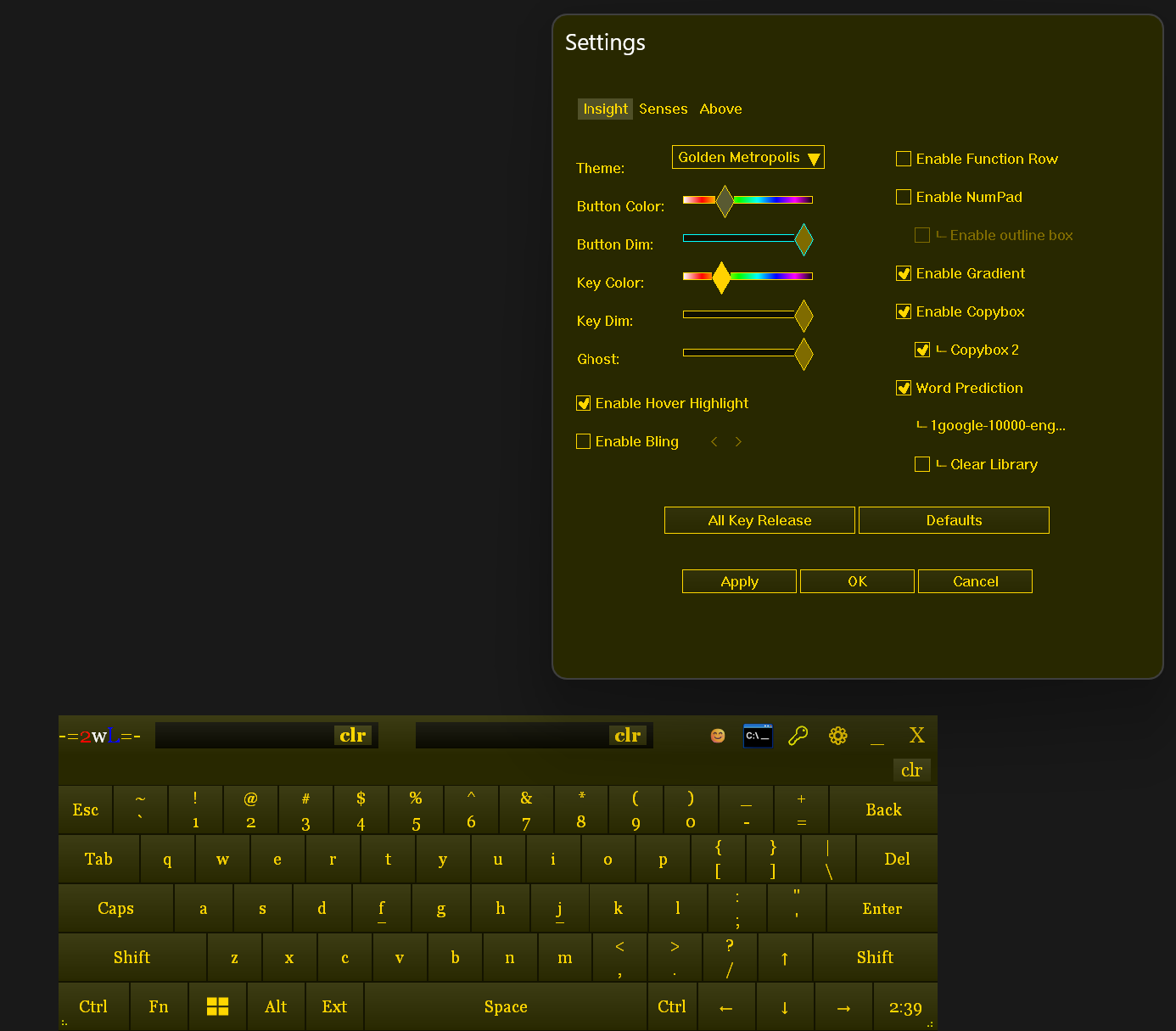
The Settings dialog has three tabs: "Insight", "Senses", and "Above".
Apply / OK / Cancel are always available at the bottom of the dialog.
LEFT COLUMN (theme / look)
Theme combo ........... Pick a built-in or saved theme (25 built-ins).
Custom themes can be deleted from the combo UI.
Save Theme As ......... Type a name and click Save to store the current
color scheme as a custom theme (CustomTheme_*
section in 2wL.ini). Re-saving with the same name
prompts to overwrite.
Button Color slider ... Hue/value of key-face background.
Button Dim slider ..... Brightness factor applied to key backgrounds.
Key Color slider ...... Hue/value of key text + label colors.
Key Dim slider ........ Brightness factor for key text/labels.
Ghost slider .......... Window opacity (transparency).
Enable Hover Highlight Toggle hover-highlight on keys.
Enable Bling .......... Animated rainbow color cycling.
Bling < / > ........... Step the bling palette (also turns Bling on).
All Key Release ....... Same effect as the title-bar lock-release button.
Defaults .............. "Reset to Defaults" - prompts before resetting.
Custom themes and custom fonts are PRESERVED.
(See RESET TO DEFAULTS below for details.)
RIGHT COLUMN (layout / clipboard / prediction)
Enable Function Row ... Permanently show F1-F12 row.
Enable NumPad ......... Permanently show numeric keypad column.
|- Enable outline box Draw a border around the numpad block (only when
NumPad is on).
Enable Gradient ....... Apply a vertical gradient to key faces.
Enable Copybox ........ Show Copybox 1 in the title bar.
|- Copybox 2 ......... Show Copybox 2 (previous clipboard) in the title bar.
Word Prediction ....... Enable on-screen suggestions while typing.
Toggling ON when learning.dat exists asks whether
you want to start fresh or continue learning.
Dictionary filename ... Shows the active dictionary label under prediction.
|- Clear Library ..... Momentary action: reset the prediction word list
back to the embedded default (no file picker).
===============================================================================
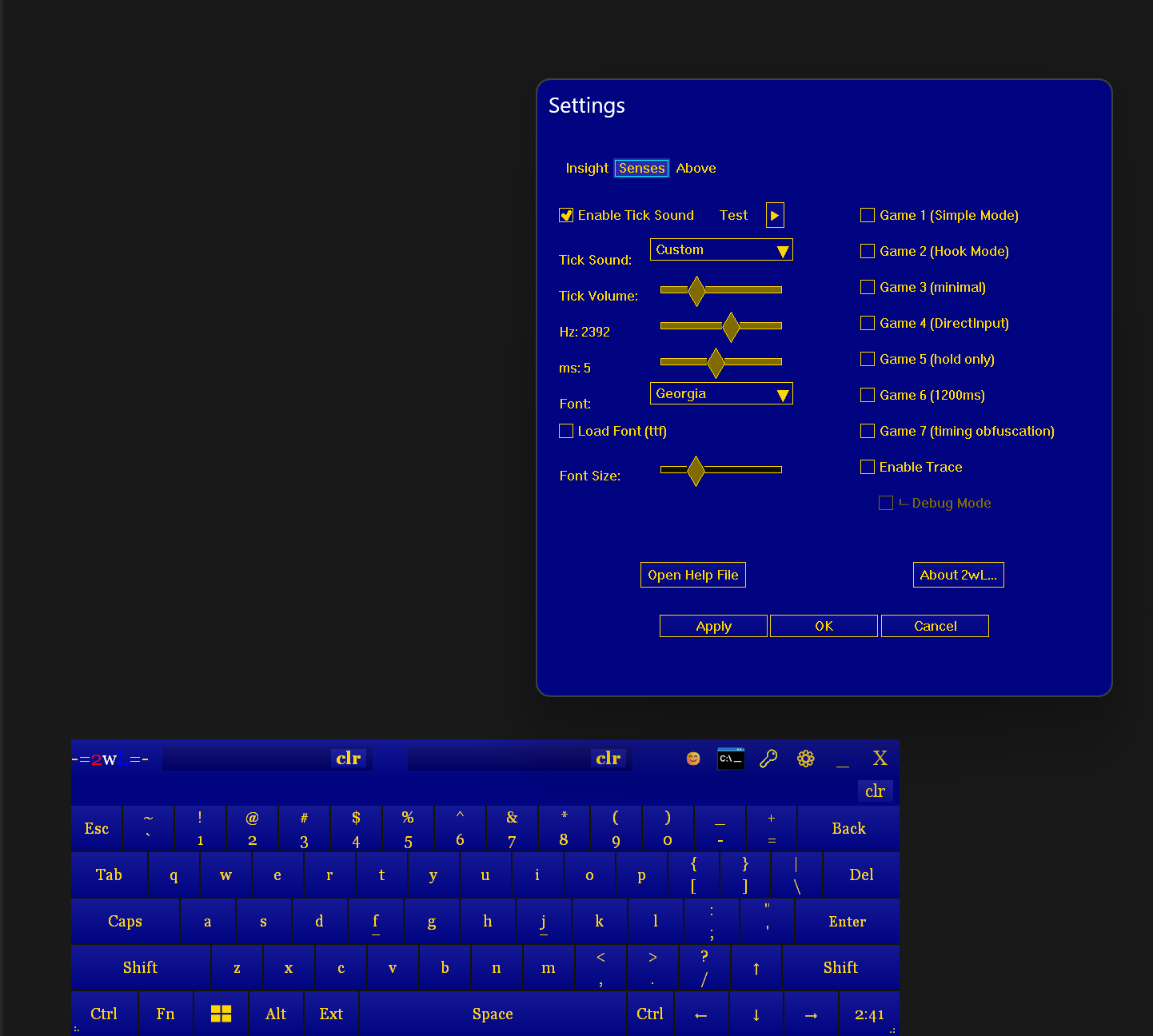
SETTINGS - SENSES TAB
===============================================================================
LEFT COLUMN (sound / fonts)
Enable Tick Sound ..... Play a synthesized click on each key press.
Test / play button .... Preview the currently selected sound.
Tick Sound combo ...... Choose from synthesized presets:
Standard, High Pitch, Low Pitch, Click, Tick,
Beep Short, Beep Long, Soft, Sharp, Echo,
Deep Thud, Low Pop, Bass Snap, and Custom.
(All sounds are generated with sine-wave synthesis;
no external WAV files are loaded.)
Tick Volume slider .... 0 - 100 percent.
Pitch slider .......... Frequency for the Custom tick preset (moving it
selects / updates Custom).
Length slider ......... Duration for the Custom tick preset (ms-scale).
Font combo ............ Pick the typeface used for key labels.
Load Font (ttf) ....... Add a custom .ttf file. The path is recorded in
the [CustomFonts] section of 2wL.ini for re-use.
Font Size slider ...... Adjust label point size.
RIGHT COLUMN (game modes + logging)
GAME MODES (Game 1-7) . See GAME MODES below for what each one does.
Enabling any Game mode shows a short caution
dialog. You can choose "Yes, never show again" to
stop the settings caution prompt (startup detection
is a separate "never show" — see below).
Enable Trace .......... Log to %APPDATA%\2wL\trace.txt (rolls over ~2 MB).
|- Debug Mode ........ More verbose log lines (only when Trace is on).
BOTTOM ROW (also on Above)
Open Help File ........ Opens the in-app Help dialog (this text; select and
copy supported — see HELP DIALOG - SELECT AND COPY).
About 2wL... .......... Version / build tag / about dialog.
===============================================================================
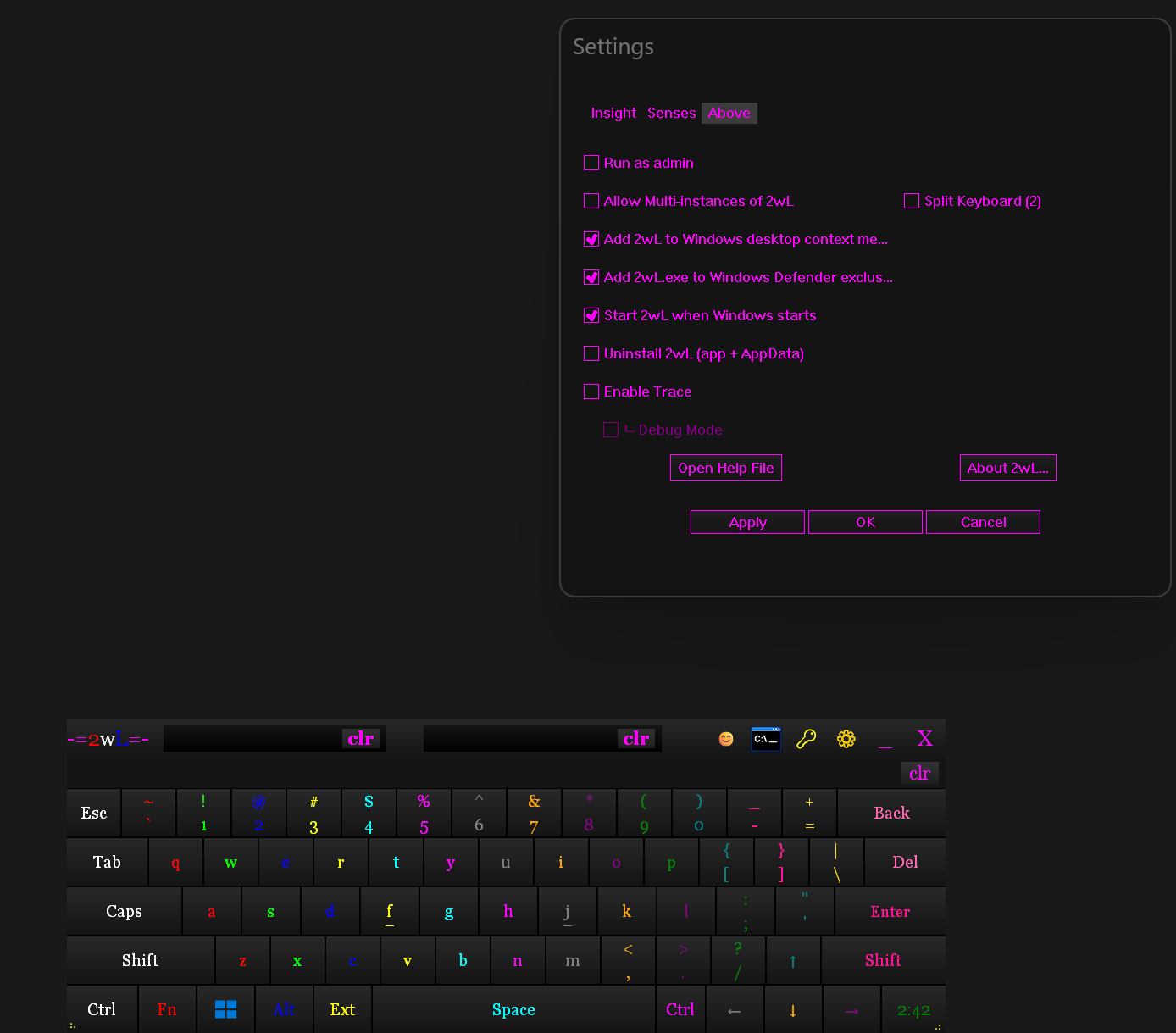
SETTINGS - ABOVE TAB
===============================================================================
LEFT COLUMN (system integration)
Run as admin .......... Persist a flag and relaunch 2wL elevated.
Useful for sending input to elevated apps that
would otherwise reject standard input.
Allow Multi-instances . Skip the single-instance mutex check, allowing
multiple copies of 2wL to run side-by-side.
Add 2wL to Windows
desktop context menu .. Adds / removes a desktop right-click entry to
launch 2wL.
Add 2wL.exe to Windows
Defender exclusions ... Requests an elevated exclusion for 2wL.exe
(UAC). Untick removes it when possible.
Start 2wL when Windows
starts ................ Register / unregister a Run-on-startup entry.
Uninstall 2wL
(app + AppData) ....... Momentary action: confirms, then runs the Inno
uninstall for a full remove (program + data).
RIGHT COLUMN
Split Keyboard (2) .... Two independent windows sharing keyboard state
(see SPLIT KEYBOARD section).
Trace / Debug ......... Same toggles as on the Senses tab (convenience).
BOTTOM ROW
Open Help File / About Same as on the Senses tab.
===============================================================================
THEMES AND APPEARANCE
===============================================================================
BUILT-IN THEMES (25)
A range of named color schemes. Examples include: Futuristic Blue,
Matrix Green (default), Neon Purple, ..., Lava Flow. Selecting one
immediately repaints the keyboard.
CUSTOM THEMES
Use "Save Theme As" on the Insight tab to capture the current sliders +
picked colors under a chosen name. Custom themes are stored as
[CustomTheme_*] sections in 2wL.ini and survive "Reset to Defaults".
DIM SLIDERS
"Button Dim" and "Key Dim" multiply the chosen colors by a brightness
factor (0% = black, 100% = stored color). They are applied AFTER the
base color, so the same theme can be tuned for day or night use.
GHOST (OPACITY)
Slides between fully solid and fully see-through. The window remains
click-through-blocking even at low opacity.
GRADIENT
Optional vertical gradient on key faces; turn off for flat-colored keys.
BLING
Animated rainbow cycling that runs at a configurable rate. Visually
loud; recommended off for actual typing.
===============================================================================
SOUNDS
===============================================================================
Sound effects are SYNTHESIZED on the fly using simple sine-wave synthesis.
There is no WAV file dependency. The presets differ in pitch, attack, and
duration. Use the Test / play control on the Senses tab to preview.
Volume is a percentage 0 - 100. Setting it to 0 effectively mutes the
preset without disabling the feature.
Pitch and Length sliders tune the "Custom" preset. Moving either slider
selects Custom in the combo and updates its frequency / duration.
===============================================================================
GAME MODES (Game 1 - Game 7)
===============================================================================
These checkboxes change HOW 2wL synthesizes keystrokes (Games 1-7) and one
optional timing option (Game 7). Different games
and apps respond to different input methods, so the right combination can
turn a game from "ignores 2wL entirely" into "works perfectly". Enable one
at a time and test.
GAME 1 - "Simple Mode" (internally: hook_mode6)
Sends input via SendInput using SCAN CODES with virtual key zero
(KEYEVENTF_SCANCODE). This is the closest match to "real" hardware
keyboard input and is often what Elite Dangerous and similar
DirectInput-only games expect.
GAME 2 - "Hook Mode" (internally: hook_mode)
Installs a low-level keyboard hook (WH_KEYBOARD_LL) and injects
events through it. Slightly more invasive than Game 1; useful for
games that read input through their own low-level interception.
The hook is installed lazily (only when Game 2 is first enabled).
GAME 3 - "Minimal" (internally: alt_mode_test)
A PostMessage-based path used together with the repeat logic. Useful
for very picky apps that want WM_KEYDOWN/UP messages directly in
their message queue rather than synthesized OS-level input.
GAME 4 - "DirectInput" (internally: alt_mode)
Sends keystrokes through a DirectInput8 keyboard device. For games
written against the legacy DirectInput API that ignore SendInput.
GAME 5 - "Hold Only" (internally: hold_only)
Disables auto-repeat on held keys. Combined with Game 6 (1200 ms),
this means a held key sends ONE press-down and the matching release
only when you let go - no repeat events between. Best for games
where multiple repeated presses cause stutter or animation cancels.
GAME 6 - "1200 ms initial delay" (internally: game_mode)
Increases the initial key-repeat delay from 500 ms to 1200 ms.
Reduces accidental double-actions when a click "lingers" on a
sticky touchscreen or mis-clicked mouse. Combine with Game 5 for
no-repeat behavior.
GAME 7 - "timing obfuscation" (internally: timing_obfuscation on SendInput path)
When checked: before each KEYUP sent via the standard SendInput
strategy, 2wL waits a small random time (a few ms). This was described
in code as "human-like jitter"; it is not encryption and does not
defeat anti-cheat. Default is OFF for lowest latency; turn ON if you
want that delay.
GAME MODE CAUTION (settings only)
When you turn on Games 1-7 in Settings, a caution dialog appears
(short intro, then plain paragraphs, then "Proceed?"). Buttons:
Yes - Proceed; keep the Game mode you just enabled
No - Revert that checkbox
Yes, never show again - Proceed; do not show this caution again when
enabling Game modes (INI: ShowGameModeDialog).
GAME MODE DETECTION DIALOG (startup only)
When 2wL starts with one or more Game modes already enabled, a shorter
prompt asks whether to keep them. "Never show this again" is a checkbox
(not the third-button wording above). Yes keeps all Game flags; No clears
all six compatibility modes (Games 1-7). Game 7 does not trigger this
dialog. That checkbox controls only future startup prompts (INI:
ShowGameModeStartupDialog), separate from ShowGameModeDialog.
===============================================================================
ADMIN / ELEVATION
===============================================================================
Some target applications (anti-cheat-protected games, system tools, UAC-
elevated installers) refuse keystrokes from a non-elevated source. Tick
"Run as admin" in Settings -> Above tab to:
1. Persist RunAsAdmin = 1 in 2wL.ini.
2. Release the single-instance mutex.
3. Relaunch 2wL.exe with --restart-wait under a UAC prompt.
If the UAC prompt is cancelled, the setting is reverted (so 2wL doesn't
get stuck asking on every launch).
===============================================================================
MULTI-INSTANCE
===============================================================================
By default 2wL holds a single-instance mutex (Local\2wLAppMutex). Launching
a second copy normally shows the "Virtual Keyboard already opened" popup
and exits. Tick "Allow Multi-instances" in Settings -> Above tab to skip the mutex
check and run as many copies as you want side-by-side.
===============================================================================
STICKY KEYS WARNING
===============================================================================
If Windows Sticky Keys is enabled when 2wL starts, lock modes can behave
oddly because the OS itself is also "latching" Shift / Ctrl / Alt / Win
keys. 2wL shows a warning dialog and offers to disable Sticky Keys for
you (via SystemParametersInfo SPI_SETSTICKYKEYS). You can re-enable it
later in Windows Settings > Accessibility > Keyboard.
===============================================================================
TRACE / DEBUG LOGGING
===============================================================================
For troubleshooting, enable "Trace" in Settings -> Senses or Above tab. Subsequent
events are logged with timestamps to:
%APPDATA%\2wL\trace.txt
The file rolls over automatically at about 2 MB. The companion "Debug
Mode" check (only enabled when Trace is on) increases verbosity for
deeper internals.
Trace settings are loaded VERY EARLY in startup (before the main window
is created) so even initialization issues are captured.
===============================================================================
RESET TO DEFAULTS
===============================================================================
The "Defaults" button on the Settings Insight tab calls a soft reset:
Restored ......... All toggles, sliders, theme = Matrix Green, font,
opacity, etc.
Re-shown ......... The Game-mode startup detection dialog (it goes
back to asking on next launch).
PRESERVED ........ Custom themes, custom fonts, learning.dat,
dictionary path - your data is safe.
A confirmation dialog asks before applying.
For a HARD reset that ALSO deletes 2wL.ini, learning.dat, and trace.txt,
launch 2wL.exe with --reset-delete-files (typically used by the Settings
dialog when explicitly requested).
===============================================================================
COMMAND-LINE FLAGS
===============================================================================
--restart-wait Waits up to 60 seconds for the previous instance
to release the single-instance mutex instead of
showing the "already opened" dialog. Used
internally when relaunching for elevation or
after a reset.
--reset-delete-files After acquiring the mutex, deletes 2wL.ini,
learning.dat, and trace.txt before continuing.
Effectively factory-resets the application.
===============================================================================
FILE LOCATIONS
===============================================================================
All persistent data lives under:
%APPDATA%\2wL\
2wL.ini ................... Settings, custom themes, custom fonts.
learning.dat ............. Word prediction history.
static_frequencies.txt ... Per-word usage tracking.
trace.txt ................ Debug log (only when Trace is enabled).
2wLhelp.txt ............... This file. Re-extracted on every launch
from the resource embedded in 2wL.exe so
it always matches the binary version.
(Copybox session text / recall history is
not written to disk.)
===============================================================================
SYSTEM REQUIREMENTS
===============================================================================
Windows ........ 10 or 11 (Win11 used for themed window captions).
Privileges ..... Standard user. UAC elevation only required when the
"Run as admin" option is set or when you target an
elevated foreground application.
RAM ............ Negligible (a few MB).
GPU ............ Any DirectX-capable adapter (themed dialogs use DWM).
Disk ........... ~1 MB for 2wL.exe plus a few KB of INI/learning data.
===============================================================================
TROUBLESHOOTING
===============================================================================
KEYS DON'T REACH MY GAME / APP
Try Game modes one at a time, in this rough order of "least invasive":
Game 1 (Simple) -> Game 4 (DirectInput) -> Game 2 (Hook) ->
Game 3 (Minimal) -> Game 5+6 (Hold + 1200 ms).
Many DirectInput-only games specifically need Game 1 OR Game 4.
Anti-cheat protected games may simply refuse all of them - that is
WORKING AS INTENDED on the anti-cheat's part.
COPYBOX SHOWS NOTHING
- Confirm "Enable Copybox" / "Copybox 2" are ticked in Settings -> Insight.
- The slot only updates when the OS clipboard receives plain text;
images / files are ignored.
- Cleared or pasted by mistake: double right-click the copybox (empty or
filled) to recall harvested pastes (YELLOW text). Further right-clicks
cycle up to 3 priors; if you started on a filled box, the cycle wraps
back to that original text (orange). See COPYBOX → TEXT COLORS /
RIGHT-CLICK RECALL.
HELP TEXT WILL NOT HIGHLIGHT / COPY
- Use Settings -> Senses or Above -> "Open Help File" (in-app dialog).
- Click in the green text, drag to select, then Ctrl+C.
- Opening 2wLhelp.txt in Notepad also works if you prefer an external
editor (file is under %APPDATA%\2wL\).
PREDICTIONS LOOK WRONG / OFFENSIVE
Disable Word Prediction in Settings, then delete:
%APPDATA%\2wL\learning.dat
Re-enable. You'll be asked whether to start fresh or continue.
WINDOW IS OFF-SCREEN
Launch 2wL once with --reset-delete-files to clear the saved window
position (along with everything else).
ELEVATED PROMPT KEEPS APPEARING ON STARTUP
You ticked "Run as admin" but cancelled UAC. The setting auto-reverts,
but if it didn't, edit %APPDATA%\2wL\2wL.ini and set RunAsAdmin=0.
HELP FILE LOOKS OUT OF DATE
Close 2wL and re-launch. The on-disk 2wLhelp.txt is overwritten from
the .exe each launch.
Download
Click download now to get access to the following files:
Leave a comment
Log in with itch.io to leave a comment.